

“Here Be Dragons”
Fix a Blank Map Visual in Power BI


Overview
You may like maps but I love maps.
One of my favorite books is Pocket Atlas of Remote Islands (auch bekannt als Taschenatlas von abgelegenen Inseln). It is an interesting twist on those specks of islands that you see on a globe. Highly recommend. A guy gets eaten in one of the short stories.
Another fascinating read is Phantom Atlas, which is a surprisingly extensive collection of what are essentially errors on maps, some of them intentionally drawn to throw off other explorers. Everyone talks about the consequences of bad data…well, imagine being a sailor in the 1600s and finding out your fabled island was invented by another sea power just to mess with you and yours.

Neither here nor there, we say, but still: maps can provide us a visual layout that helps tell ye old data story. We can see concentrations of sales, hills and valleys for premiums, patterns in claims, broker performance, etc. in an organized geographic snapshot. Most viewers will readily understand this medium.
Map visuals are pre-installed in Power BI and have some rich features for OOTB visuals.
Sometimes, though, the maps act funny. There have been occasions when I am working on a virtual machine and map visuals break for no apparent reason; only a blank screen is returned.
This article will show you how to use Fiddler to fix a blank map in Power BI.
Caveats
Consult with your security team first. If you need to make changes to the firewall, talk to your security team before doing anything.
Maps need to be enabled at the tenant level. Area, Filled and Azure Maps require enabling by a Power BI admin for them to work. This is a tenant-level setting. If maps are not enabled then you will see an obvious message:
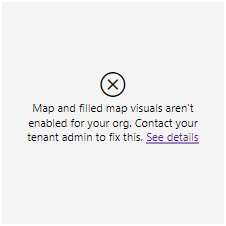
Replicating the error. Depending on your VM setup, Power BI maps may work perfectly fine. Depends on machine config, it seems.
Prerequisites
Whitelist the following links. Make sure these links are whitelisted or not being blocked in some way
https://dev.virtualearth.net/REST/V1/Locations
https://platform.bing.com/geo/spatial/v1/public/Geodata
https://www.bing.com/api/maps/mapcontrol
Virtual machine. A virtual machine may be necessary to re-create this issue, as I have seen this only happen here.
Download and install Fiddler. Fiddler is part of the solution, so we will need to download and install it.
Recreating the Issue
We can fix this in two quick steps.
In Power BI, load sample data that has enough address info: city, state, postal code, country, latitude/longitude.
The more data the better but you do not need all these elements to re-create this issue. Postal code and latitude/longitude are ideal because they are more precise. City or state will suffice.
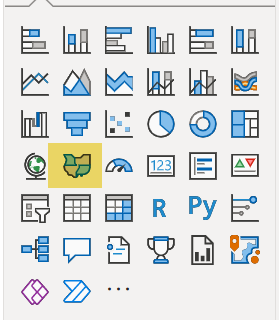
Add any map visual. Let's go with a Filled Map.
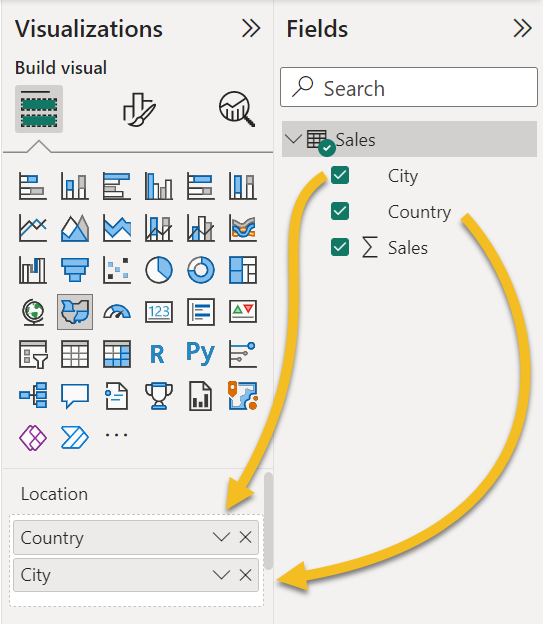
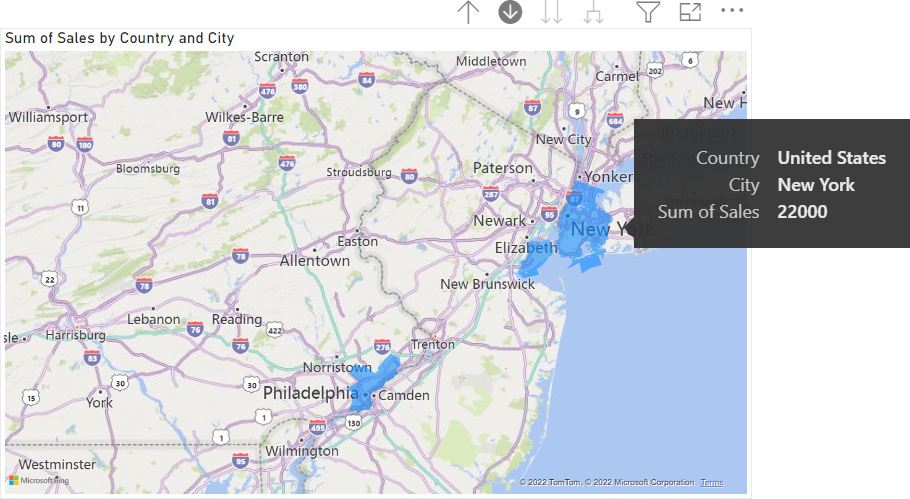
Add a location data point to the Location field well. The Sales field should go in the Tooltips field well.
Womp womp, map is blank. Kaputt.
Steps to Fix a Blank Map
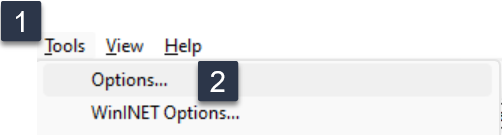
In Fiddler, select Tools --> Options.
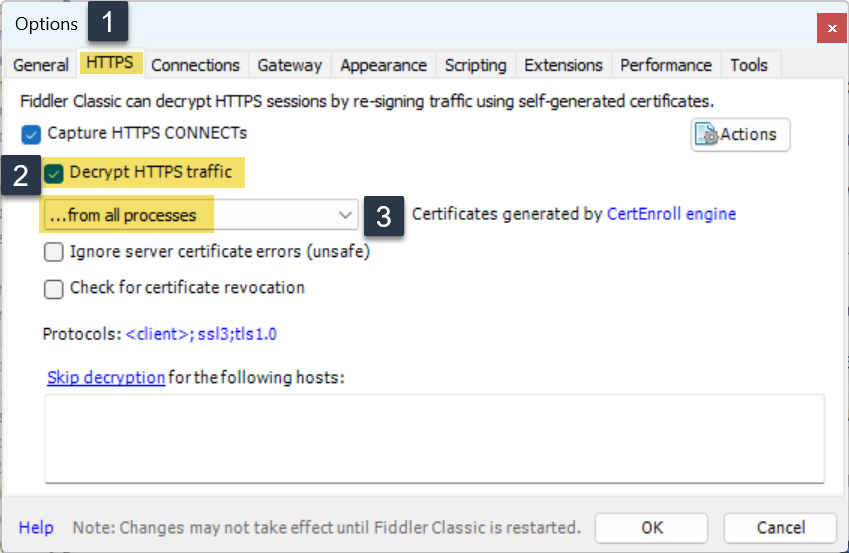
Select the HTTPS tab. Check the Decrypt traffic option. It must be checked. In the drop-down just below, select ...all processes.
Let's look at the map in Power BI again. It should be populated.
Are we in business?
I have heard this issue occurring in native desktops on Surface machines and not in a VM. Aside from any admin tasks, try the following steps (paraphrased from a community solution offered by Jimmy Tao, who responded to my service request, small world).
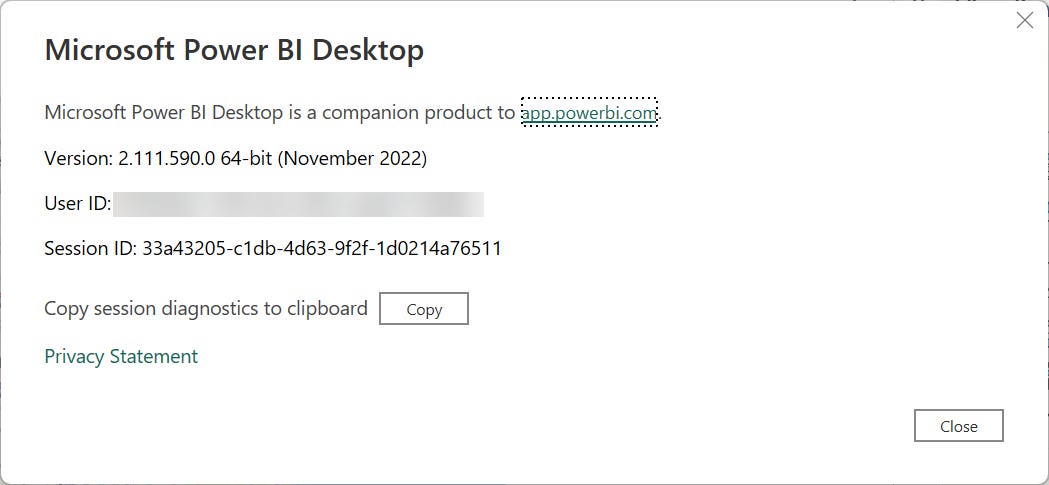
Ensure Power BI Desktop is at the latest version. Compare the edition to the information found in the About section within the Info tab in Power BI.

Visit the Bing map via the browser to confirm it is not blocked.
Open Options and select the Data load (Global) menu item in the left-hand side.
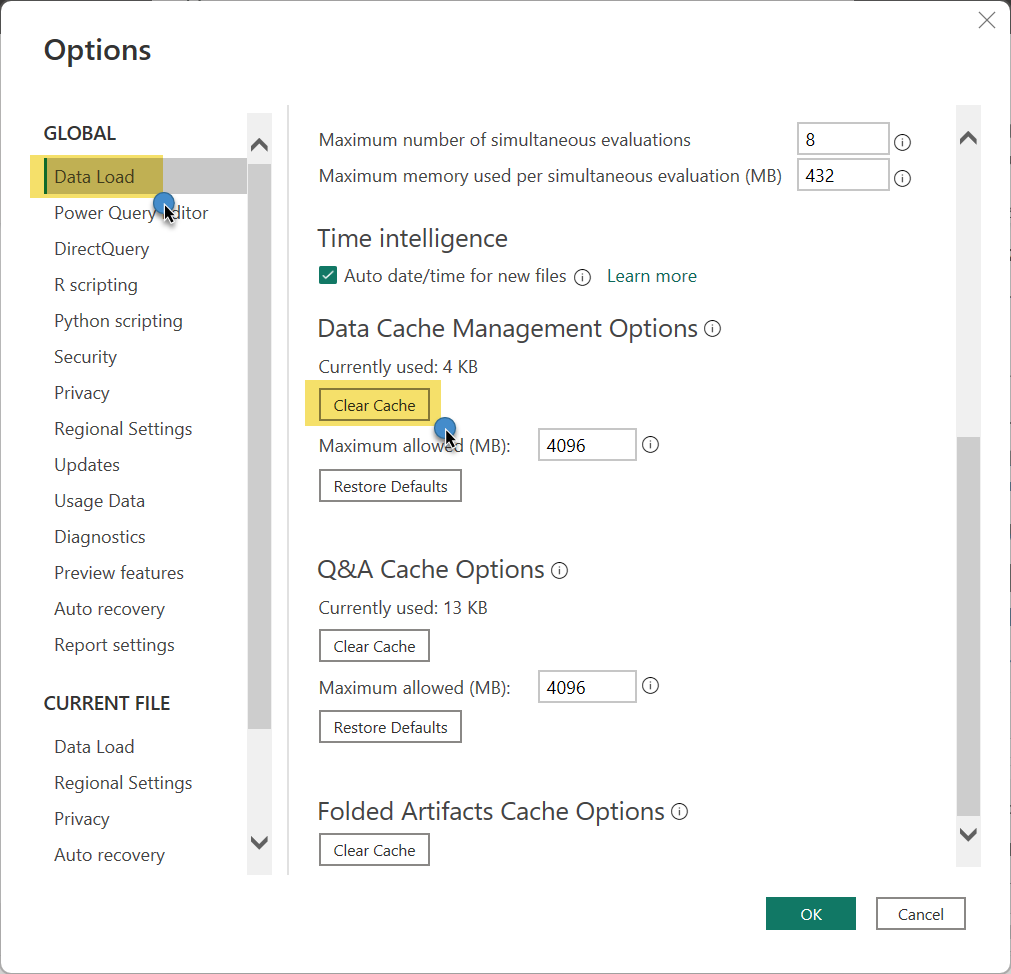
Clear the cache and press OK.
Re-open Power BI. Try the Filled Map again. That may work as well.
Have you ever experienced this issue on a VM or elsewhere? Feel free to add a comment or drop me a line so I can add on to the article (with proper credit to you, of course).
Resources
What's new in Power BI? - MS Learn